
Draw better with AI
Create your reference with AI. Draw it. Get feedback.
Turn any photo into a drawing reference in the style you choose, trace it by hand on real paper, then get AI feedback on what to improve next.

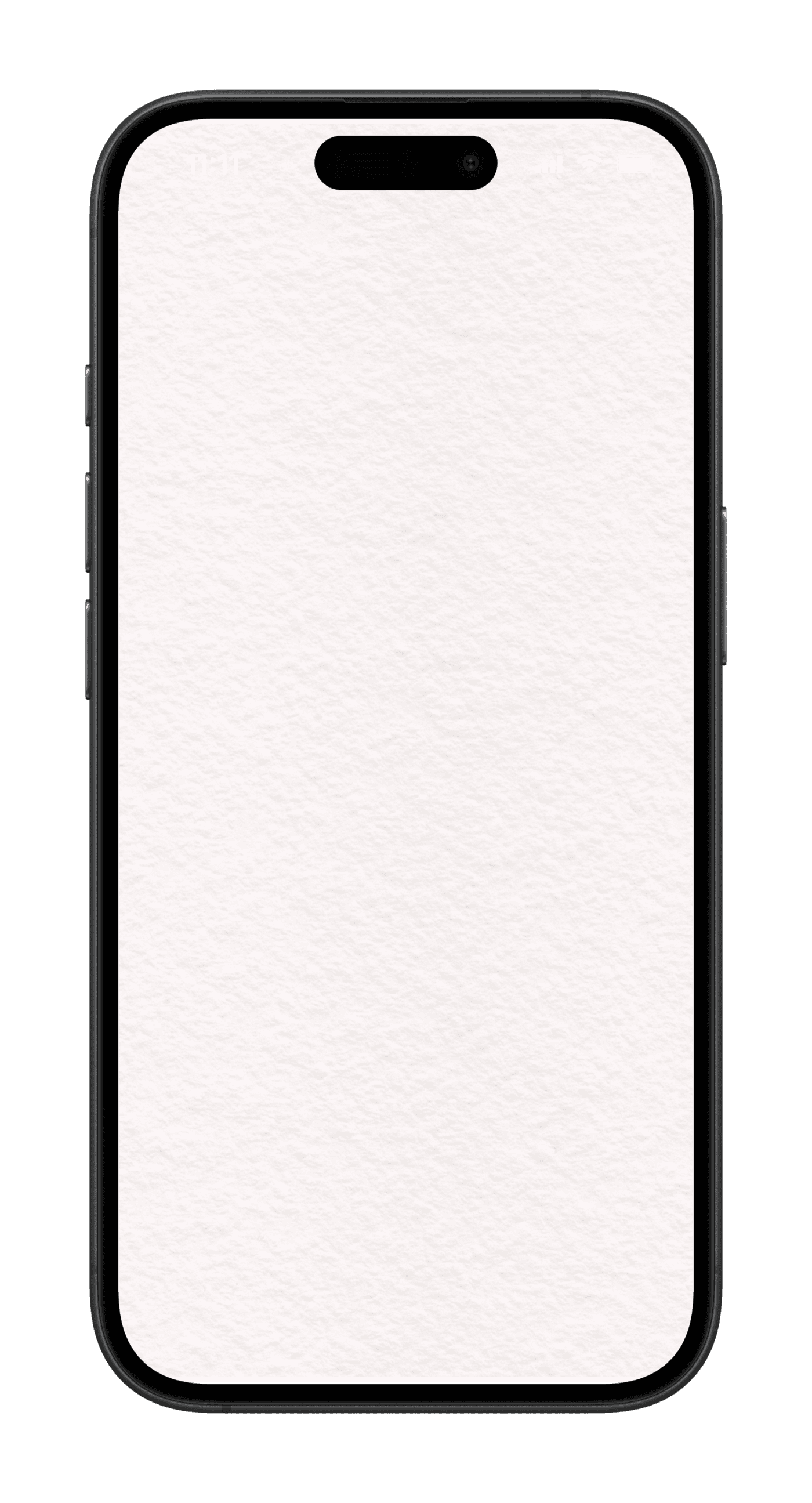 Stroky's Camera mode showing a reference overlay on top of a live camera view of paper
How Stroky works
From photo to finished drawing, in four steps.
Create a reference, set up your overlay, draw on paper, then improve.
Create
Generate a reference from your photo in the style you choose, or pick a guided template.
Set up
Overlay it on your live camera feed or a blank screen, and adjust opacity, zoom, and position.
Draw
Draw it by hand onto real paper, guided by the overlay the whole way.
Improve
Photograph your drawing and get focused AI feedback on what to work on next.
AI references
Turn any photo into a drawing reference.
Pick a photo, choose a style, and Stroky generates a reference you can draw right away.
Simple
Clean, minimal lines — the easiest place to start.
Anime
Stylized shapes with that hand-drawn animation look.
Comic
Bold outlines and strong contrast, like a comic panel.
Detailed
Rich detail and texture for a bigger challenge.
AI image generation is a subscriber feature.
AI feedback
Know exactly what to improve.
Pick a photo of any drawing and Stroky gives you focused coaching, so every drawing teaches you something.
- 1
One area to improve
A single, clear focus instead of a long list of notes.
- 2
Why it matters
Understand how it affects the drawing as a whole.
- 3
A practical suggestion
Something concrete to try the next time you draw.
Trace your way
Camera, Screen, or soon AR.
Stroky overlays your reference onto your world so you can trace it onto real paper. Camera and Screen modes are ready today — AR support is coming soon.
Tools in your workspace
- Opacity control
- Lock overlay in place
- Grid overlay
- Monochrome toggle
- Horizontal flip
- Pinch to zoom & reposition
- Camera zoom
- Flashlight
- Undo & redo
- Record your session
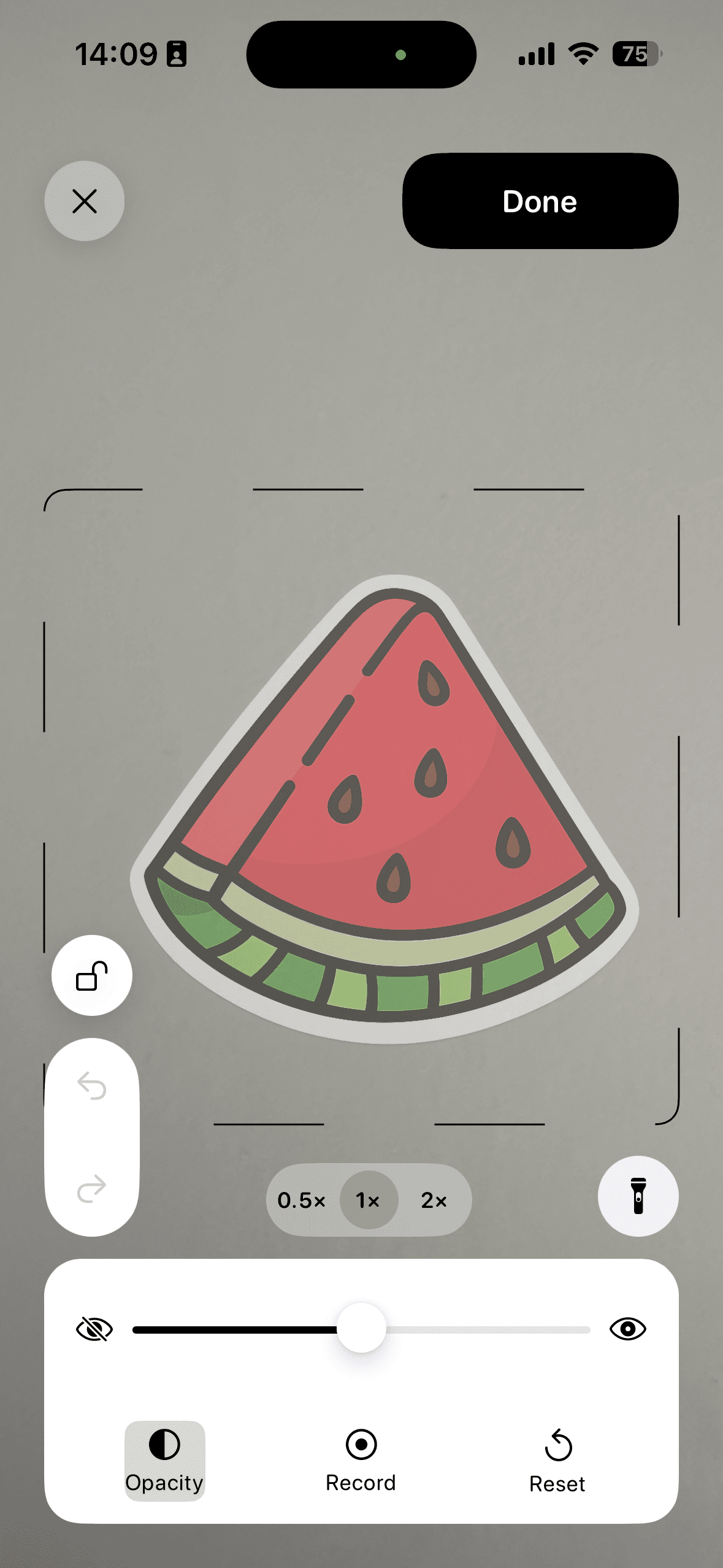
Choose how you draw
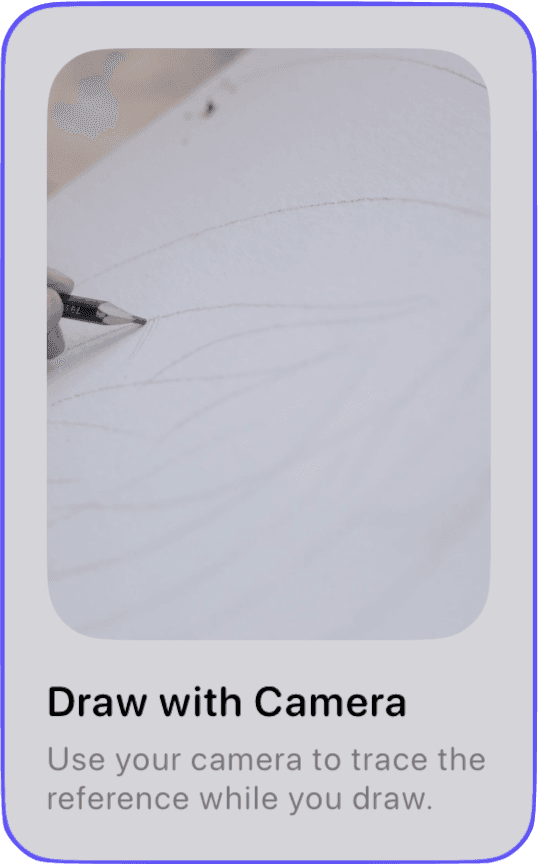
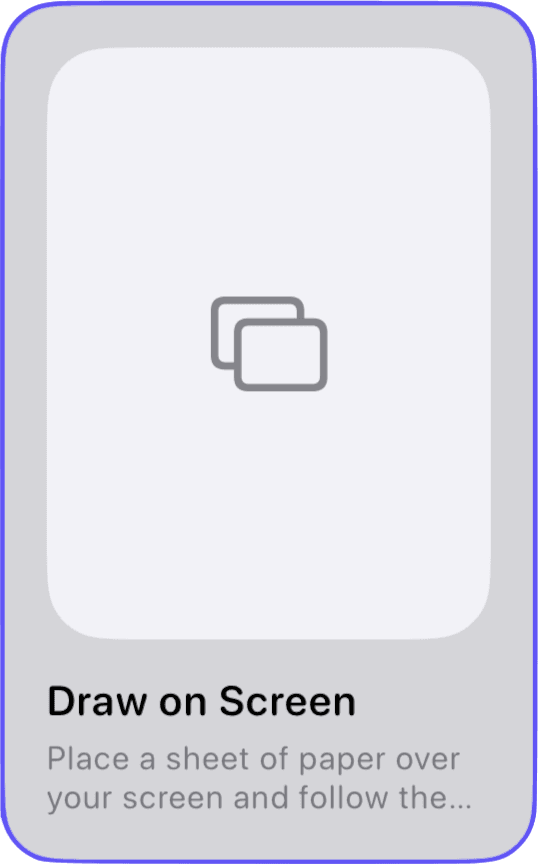
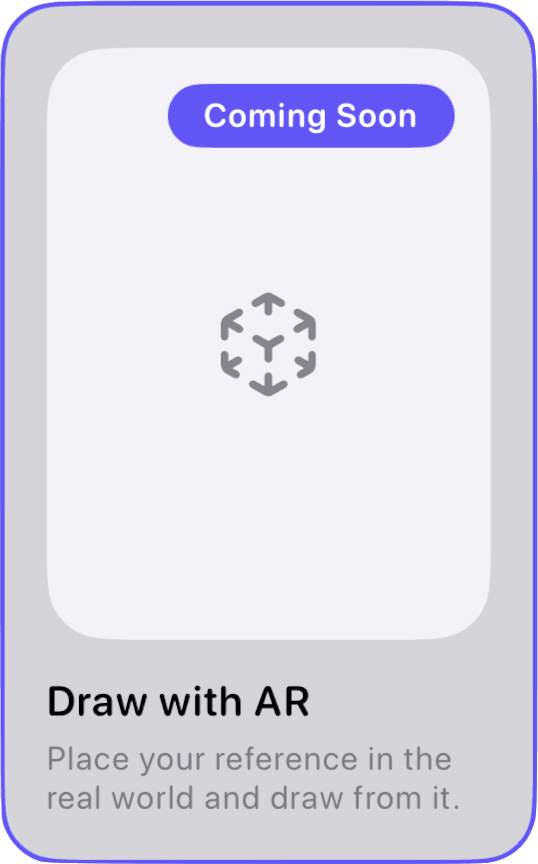
AR is on the way. Camera and Screen modes are ready to use today.
The template library
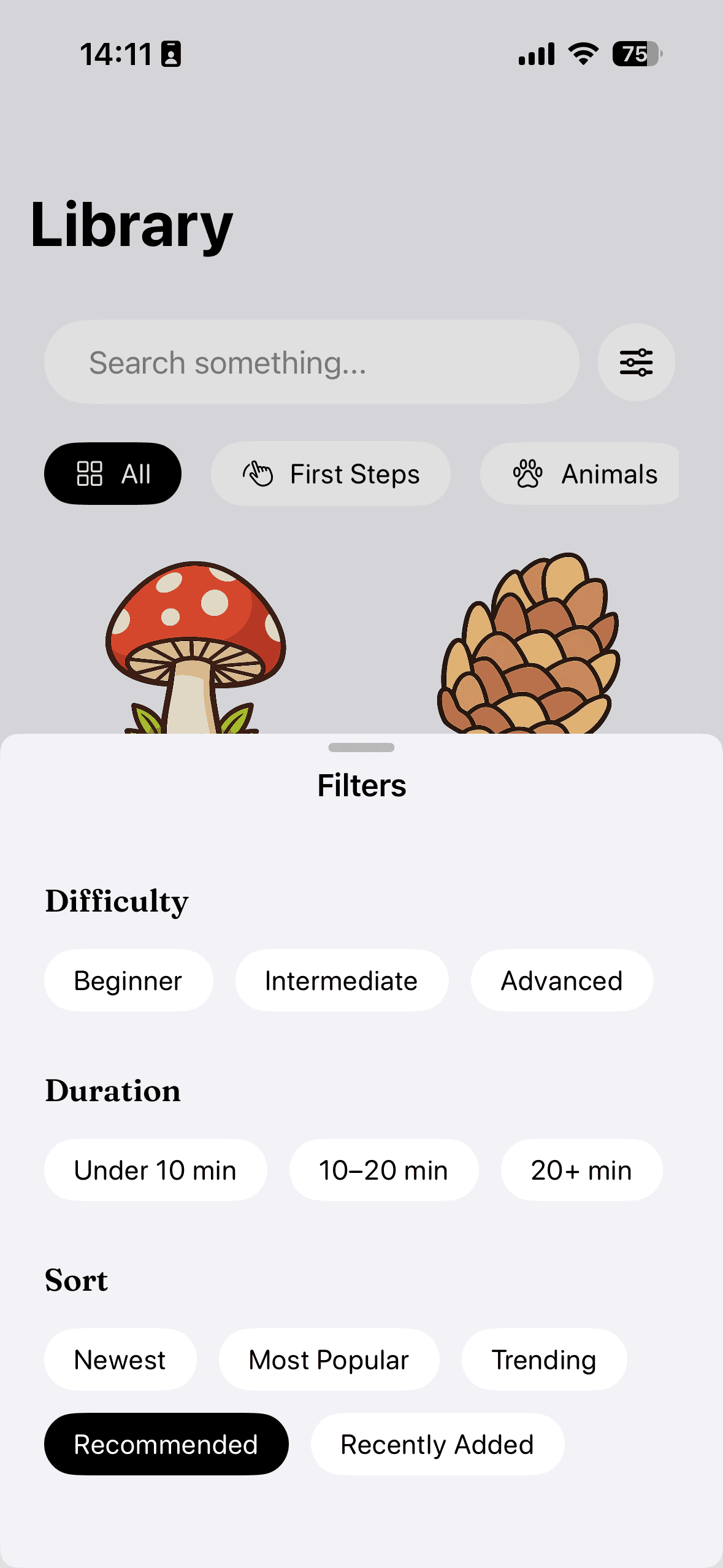
Hundreds of guided templates, sorted the way you think.
Browse by category, filter by difficulty or the skill you want to practice, and start tracing in a tap.
Categories include
Difficulty
Skills you can target
Curated collections
Progress that sticks
Every drawing moves you forward.
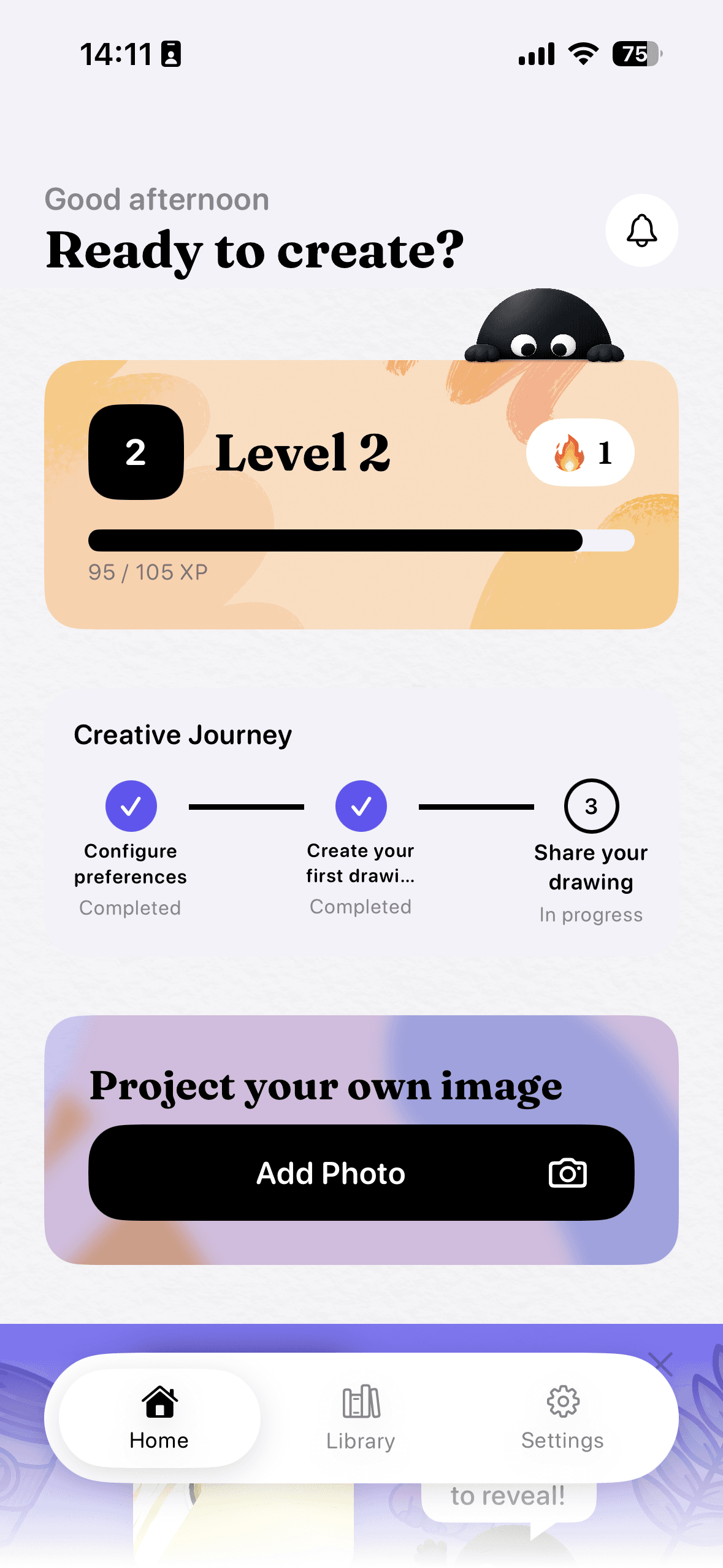
Stroky turns finishing a drawing into something worth celebrating, so you keep coming back to trace the next one.
XP and levels
Every completed drawing earns XP and pushes you toward the next level.
Streaks
Trace regularly and keep your streak alive — Stroky keeps count for you.
A finish worth celebrating
Each completed drawing ends with a summary of steps and time spent, a spot on your Creative Journey, and confetti.
Free to start
Start free. Subscribe to unlock AI.
Stroky is free to download, with a selection of free templates to draw right away. A subscription unlocks the rest.
Free
- A selection of free templates
- Camera and Screen drawing modes, with every tool
- XP, levels, and streaks
- Guided step-by-step templates
Subscriber
- AI image generation in four styles: Simple, Anime, Comic and Detailed
- AI feedback on your drawings
- Every template in the library, including premium ones
- Draw from your own photos
- New templates added weekly
Pricing and free trial details are shown on the App Store.
FAQ
Questions, answered.
What is Stroky?
Stroky is a drawing companion for iPhone. It generates AI references from your photos in different styles, overlays them on your camera or screen so you can draw them by hand on real paper, and gives you AI feedback on your drawing.
How does AI image generation work?
Choose a photo and a style — Simple, Anime, Comic or Detailed — and Stroky generates a new reference image from it. You can then draw it with the Camera or Screen overlay. AI image generation is a subscriber feature.
How does AI drawing feedback work?
Pick a photo of any drawing and Stroky analyzes it, then gives you one area to improve, why it matters, and a practical suggestion for next time. AI feedback is a subscriber feature.
Is Stroky a drawing app with a digital canvas?
No. There's no canvas or digital brushes — your drawing is always made on real paper. Stroky only handles the overlay, guides, and tools that help you trace accurately.
What's the difference between Camera mode and Screen mode?
Camera mode shows a translucent overlay on your live camera feed, so you trace onto paper on a desk or easel while watching the screen. Screen mode fills your screen with an opaque overlay, lightbox-style — hold thin paper up to it and trace what shows through.
What paper or surface do I need?
For Camera mode, any regular paper works — Stroky overlays the reference on the camera's live view of your page. For Screen mode, use thinner or semi-transparent paper held against your screen, the same way you'd use a lightbox.
What devices does Stroky support?
Stroky runs on iPhone. Camera mode uses your iPhone's rear camera to show the live overlay; Screen mode works directly on your iPhone's display.
Is Stroky free?
Stroky is free to download, with a selection of free templates you can draw right away. A subscription unlocks the rest of the template library, AI image generation, AI drawing feedback, drawing from your own photos, and weekly new templates.
Can I draw from my own photos, or only templates?
Both. Free templates come from Stroky's curated library. Subscribers can also pick any photo from their own library, draw from it directly, or generate an AI reference from it.
Does Stroky save or export my drawing digitally?
No — your drawing itself is always on paper. After you finish, you can take a photo of it with the camera and share it. Nothing is exported from inside the app, because nothing digital was created.
Does Stroky track my progress?
Yes. You earn XP and level up as you complete drawings, and Stroky tracks your streaks so you can see how consistently you're practicing.
Where can I download Stroky?
Stroky is available on the App Store for iPhone. Use the Download button anywhere on this page to get it.

Ready to create your first drawing?
Generate a reference, draw it on real paper, and get feedback.